A lot of my work takes place in the area of teaching apps. Here is a recent review of the content:
A Computing Teacher’s Guide to toolsforteaching.co.uk
There’s a moment every computing teacher recognises. You’ve explained a concept three different ways, drawn it on the board twice, and half the room is still nodding along without really seeing it. What usually helps isn’t a better explanation. It’s letting students touch the idea themselves, watch it move, break it, and fix it.
That’s the thinking behind toolsforteaching.co.uk, and it shows. This isn’t a handful of tools bolted together to look like a product suite. It’s over thirty free, browser-based applications, each one built to solve a specific classroom problem that turned up often enough to be worth fixing properly. No logins for students in most cases, no subscriptions, no adverts, and everything released under Creative Commons Attribution-NonCommercial-ShareAlike 4.0, so you’re free to use it, adapt it, and share it with colleagues.
Given the size of the collection, this guide is organised by category rather than as one long undifferentiated list. Skip to whatever’s relevant to what you’re teaching this term.
Learning to code, without syntax getting in the way
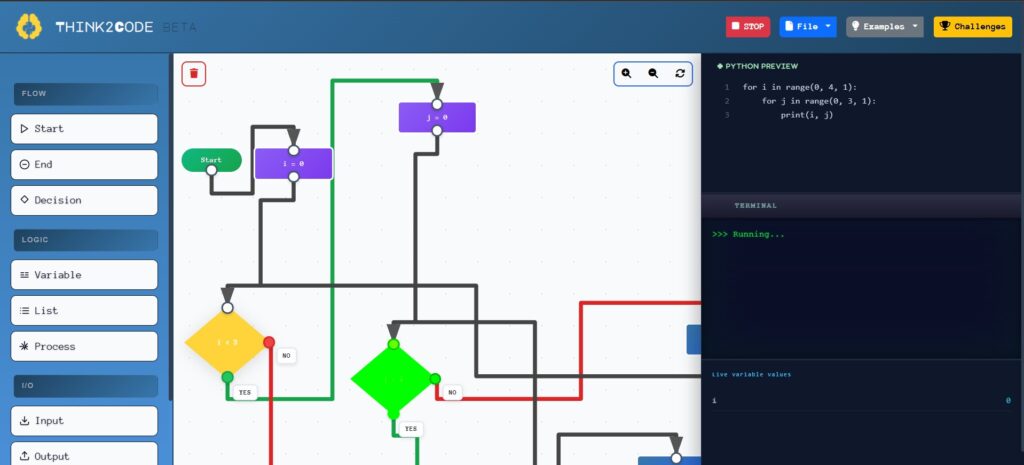
Think2Code tackles the single biggest barrier in early programming: the gap between understanding logic and being able to type it correctly. Students build programs as flowcharts, dragging and connecting blocks for inputs, decisions, loops and variables, and the tool compiles what they build into real, working Python underneath. Run the program and the flowchart lights up step by step as it executes, so students watch the logic move rather than just reading a static diagram. Thirty built-in challenges come with a Submit and Test feature that automatically marks a student’s solution correct or incorrect, which makes it genuinely useful as an independent task or an end-of-lesson exit ticket, not just a demo you talk through once. Start with sequence challenges, move to selection and iteration, and ask students to predict the output before they press run.
Python Playground is a full, ad-free Python interpreter that runs entirely in the browser, no installation and nothing to configure on college machines. It supports the packages students actually need for real work, including NumPy, Pandas, Matplotlib, SciPy, scikit-learn and turtle, with anything else available through micropip. It comes with algorithmic challenges built on William Lau’s Little Book of Algorithms 2.0, supports multiple files, and lets students load and save their code to carry on elsewhere. There’s a student manual available as a PDF too, so it’s ready to hand to a class without you having to write your own onboarding sheet first.

Diet Jupyter and its JavaScript sibling solve a specific and very common FE problem: you want the notebook experience, formatted instructions sitting alongside runnable code, without installing Jupyter or Anaconda on machines you don’t control. Students drag a notebook file onto the page, work through it, edit and run the code sections including calculations and charts built with numpy and matplotlib, and download their finished copy at the end. Because everything runs client-side, there’s no login and nothing saved to a server, which quietly sidesteps a whole category of data protection questions. It’s well suited to guided worksheets and starter activities where you want students coding within seconds of the lesson starting.
HTML/CSS/JS Editor (cm-html) gives Level 2 and Level 3 students an authentic multi-file development environment, built on the Monaco editor, the same engine that powers VS Code. It offers live preview in a sandboxed iframe, a built-in reference drawer with MDN Web Docs search built straight in, a simulated mobile viewport for testing responsive layouts, and zip export so a project can leave the browser as a real, portable folder of files.
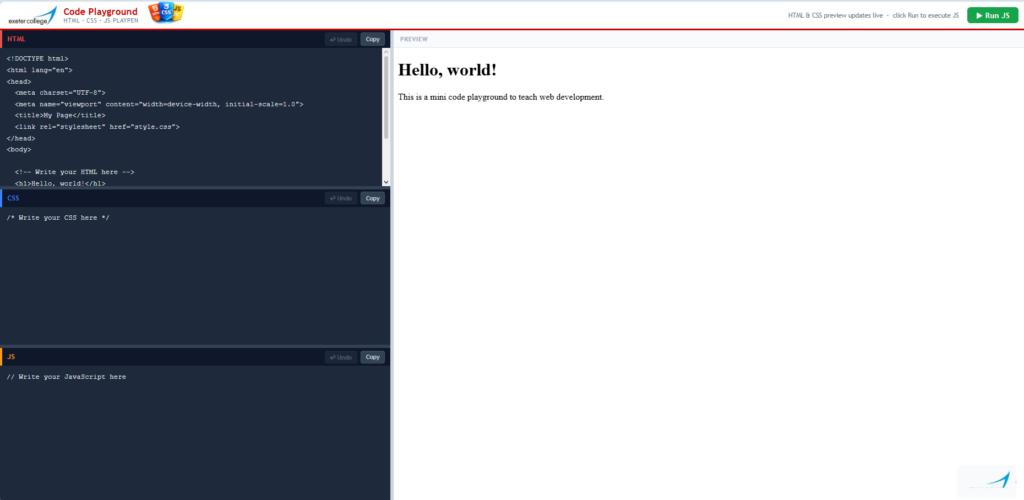
HTML Playground is the lighter equivalent for quick, single-session work: three side-by-side editors for HTML, CSS and JavaScript with an instant live preview. No build step, no sign-in, and nothing to configure. Think of it as a no-frills alternative to the commercial playground sites students may already know, minus the adverts.
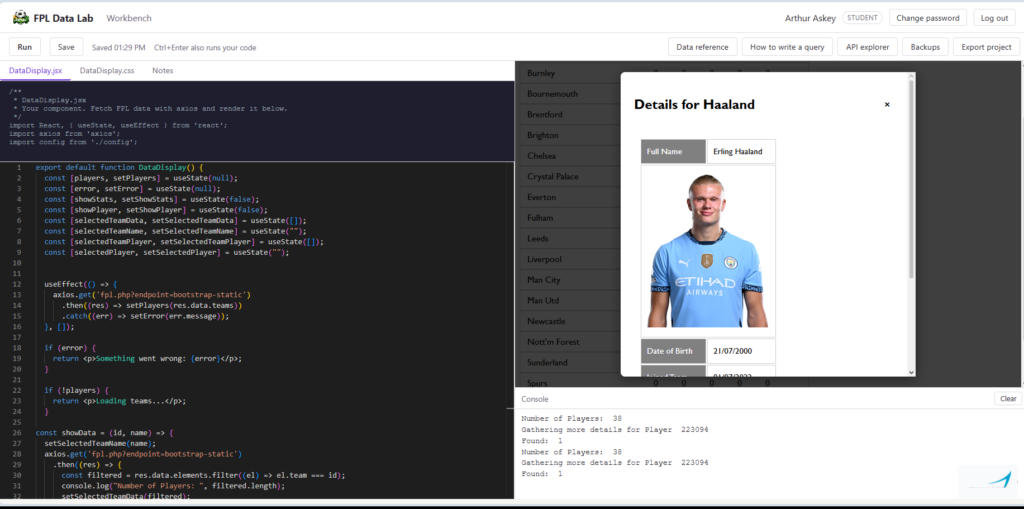
React Development Environment (FPL Data Lab) is the most ambitious of the coding tools and deserves a proper look. Built for NCFE Level 2, BTEC Level 3 and T-Level students, it teaches real front-end development using live Fantasy Premier League data rather than static, made-up datasets. Students write JSX and CSS in a proper Monaco-based editor with tabs for their code and notes, and every run pulls genuine, current football statistics, fixtures and player data through a safe, teacher-controlled API proxy, so there’s a real reason to write conditional logic and handle loading and error states rather than a worksheet reason. A console panel translates common beginner errors into plain English instead of the intimidating messages professional tools usually throw. For teachers, there’s a dashboard listing every student where you can open and run their work exactly as they see it, with full save history if you need to see how a piece of coursework developed or roll back an accidental loss. Finished work exports as a complete, runnable project, so strong students can take it away and keep building outside the sandbox.
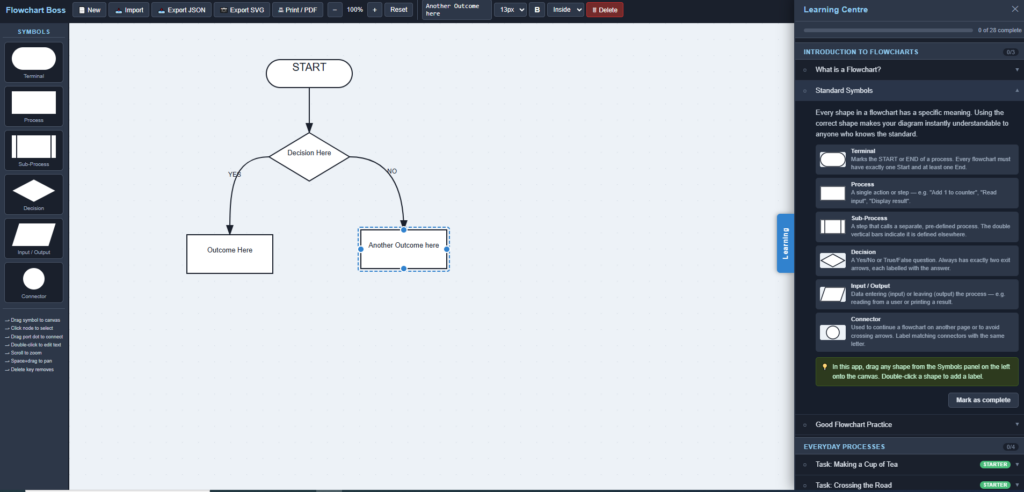
Flowchart Boss is a dedicated flowchart builder scoped specifically to the symbol set students need for Pearson T-Level Digital Software Development, so there’s no clutter of shapes they’ll never be assessed on. It’s a proper diagramming tool in its own right, with drag-and-drop symbols, bezier-curve connectors, pan and zoom, inline text editing, and export to SVG or PDF. A built-in Learning Centre offers twenty-seven self-paced lessons with locally saved progress, which makes it as much a revision resource as a drawing tool.
AI-powered marking and revision
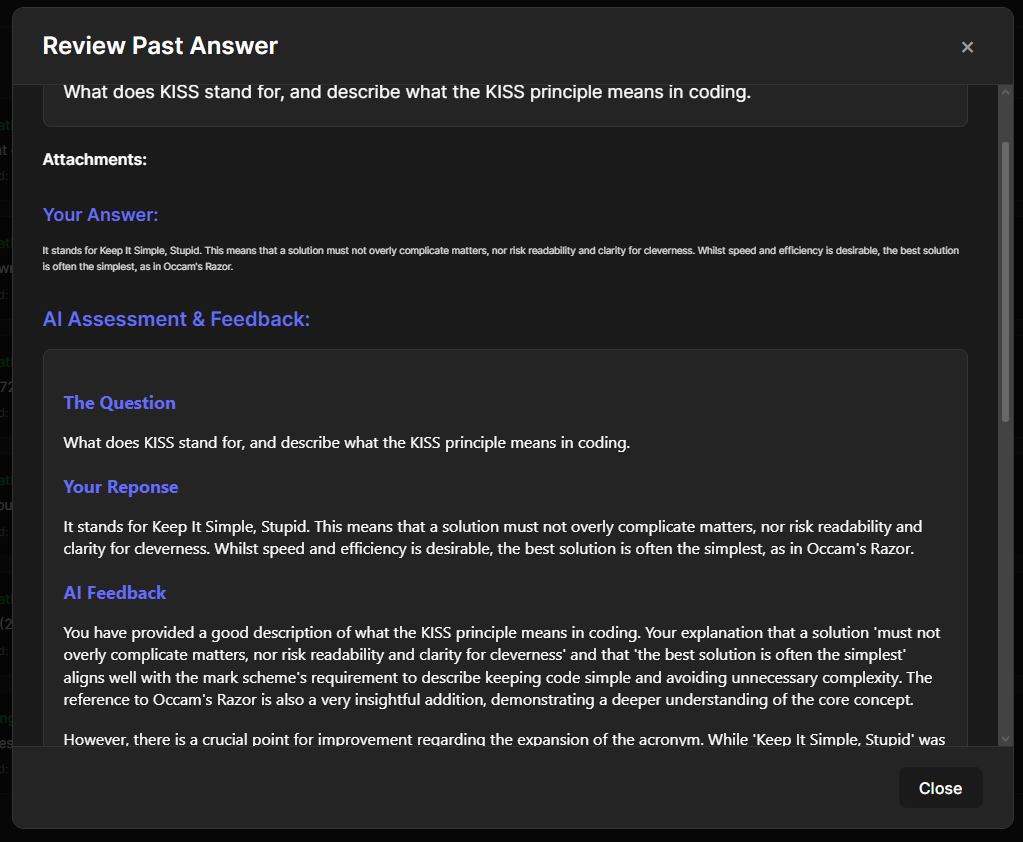
AI Revision Bot is the tool most likely to change how you spend your evenings. Students submit written answers, or upload a diagram or screenshot alongside them, and Google’s Gemini 2.5 Flash returns structured, mark-scheme-aware feedback within seconds, so nobody waits until next lesson to find out where they went wrong. The layer that makes it a teaching tool rather than just an automated marker sits on top of that: you review the AI’s feedback and apply your own Red, Amber or Green rating, and the system tracks those ratings over time per student and per class. That gives you a clean signal of where a class actually stands, without a numeric grade inviting an argument over one mark. A badge system rewards sustained green streaks and rising accuracy across four separate tracks, which sounds like a small addition until you watch a class respond to it. It supports rich text throughout, including subscript and superscript, so H₂O and x² finally render properly rather than as plain text approximations. It runs on ordinary PHP and MySQL hosting with no subscription and no per-student fee; the only running cost is your own Gemini API key, typically around sixty pence a month.
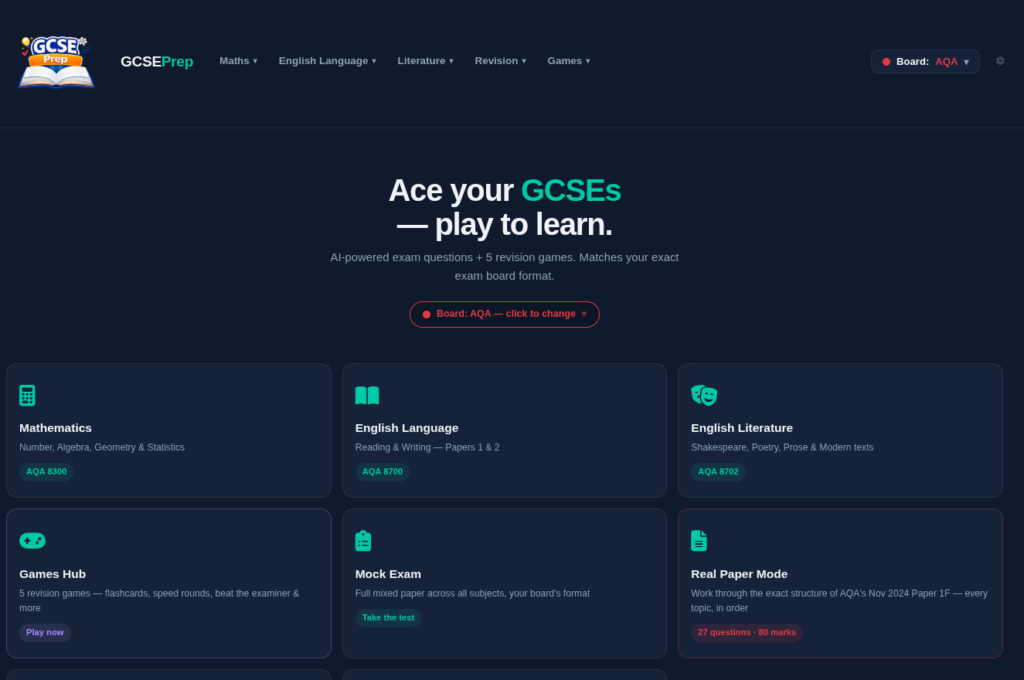
GCSEPrep applies the same AI-marking philosophy to GCSE Maths, English Language and English Literature, across AQA, Edexcel and OCR. It generates exam-style questions labelled with the exact paper reference, marks and assessment objectives for the relevant board, and marks answers against board-style mark schemes with an AO breakdown and a model answer for comparison. A Real Papers Mode works through the actual structure of a specified past paper, generating fresh questions within that framework each time, so students get genuine exam rehearsal rather than a random question bank. Alongside the study tools sits a set of genuinely well thought out revision games: Flashcards, a sixty-second Speed Round, a grade-ladder game called Beat the Examiner, Word Scramble for key vocabulary, and a Match-Up pairing game, plus curated links into the best free GCSE YouTube channels.
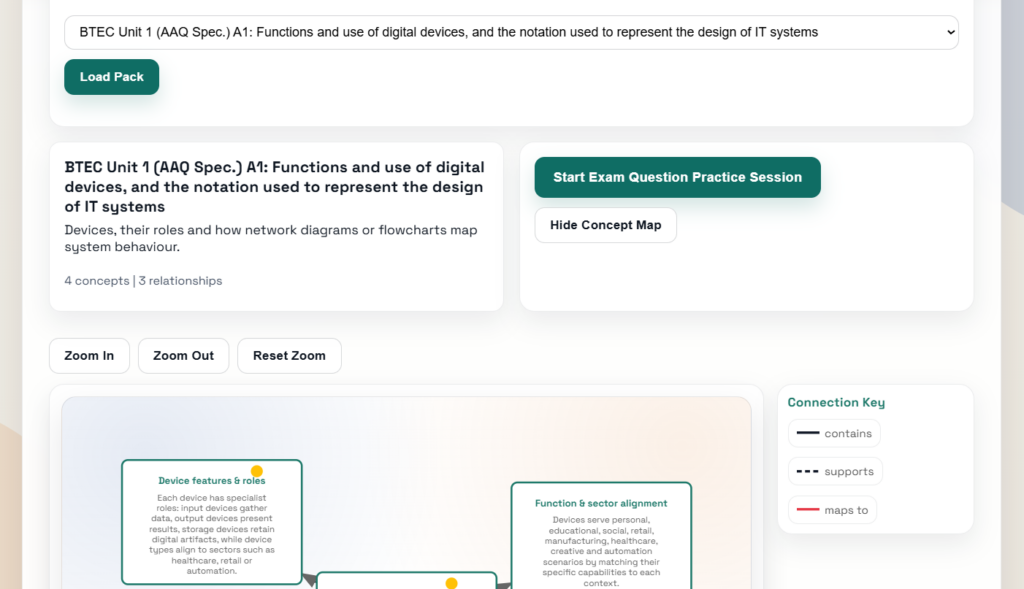
AAQ Unit 1 Exam Question Practice is built specifically for BTEC IT Unit 1, and takes a spaced repetition approach rather than a straightforward question bank. Students answer exam-style prompts and then grade their own confidence using an Again, Hard, Good or Easy scale, which drives when that question resurfaces. Focus modes let you narrow what gets served, and a limited daily AI rewrite feature lets students see their own answer improved, which is a genuinely useful way to model what a stronger response looks like without simply handing them one.
Cybersecurity and digital citizenship
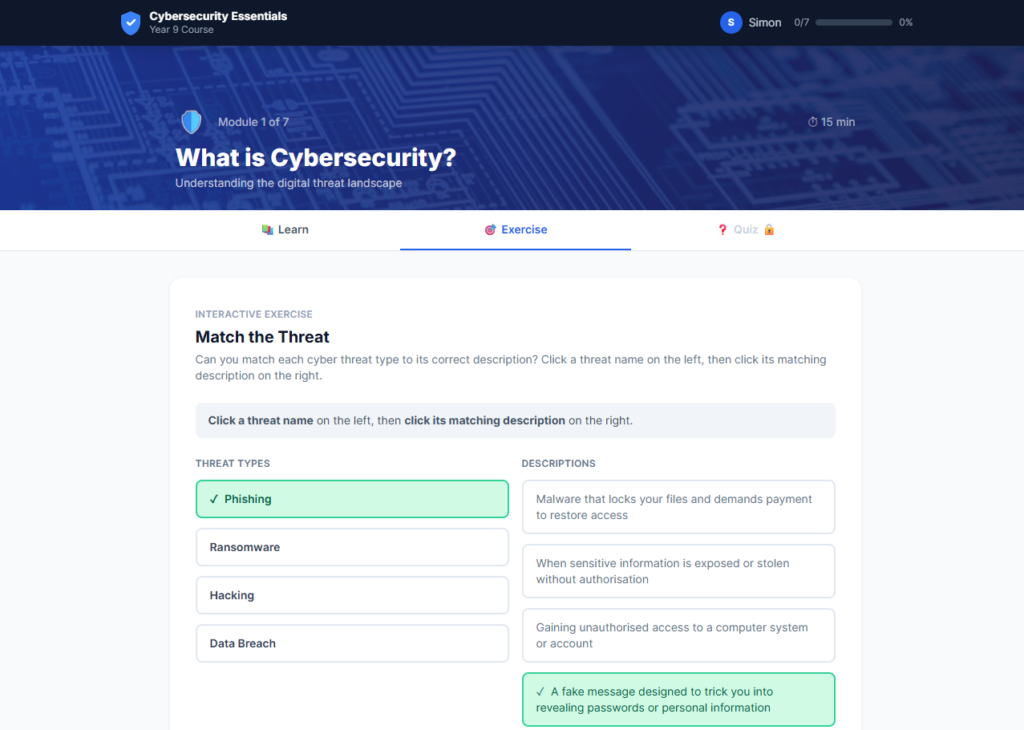
Cybersecurity Essentials is a complete, self-contained course rather than a single activity, and it’s one of the more substantial resources on the site. Seven sequential modules take students from what cybersecurity actually is through passwords, phishing, safe browsing, malware, digital footprints and incident response, each following a strict Learn, then Exercise, then Quiz structure, so students can’t skip straight to the test. The exercises go well beyond multiple choice: testing real passwords against a strength meter, spotting red flags in a realistic fake phishing email, sorting malware by type, and identifying oversharing in a mocked-up social media post, several with deliberate decoys to sharpen critical evaluation rather than guesswork. Quizzes need a 60% pass mark with unlimited retries and question-by-question feedback, and progress saves automatically to the browser so students can pick up where they left off. Finish all seven modules and students get a printable certificate. All the content lives in a single JavaScript file, so adjusting wording or swapping in your own examples doesn’t mean touching the application itself, and the content throughout is UK-specific, referencing the NCSC, Action Fraud, UK GDPR and the 7726 SMS scam reporting number rather than generic international material.
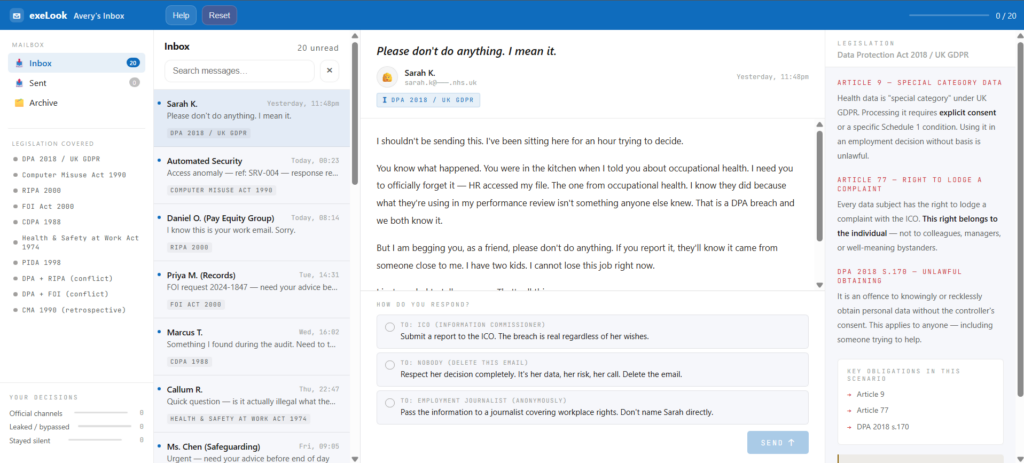
Avery’s Inbox takes a genuinely inventive approach to cyber law and ethics, presenting the scenario inside a parody Outlook-style email client called exeLook. Students play an IT role receiving twenty emails from colleagues, automated systems, regulators and journalists, and have to decide whether to report, leak or bypass, or stay silent on each one. The legislation woven through the scenarios is properly comprehensive: DPA 2018 and UK GDPR, the Computer Misuse Act 1990, RIPA 2000, the Freedom of Information Act 2000, the CDPA 1988, the Health & Safety at Work Act 1974, and PIDA 1998. It works well run as a whole-class starter on one or two emails before students diverge into their own choices, with the end-of-scenario profile serving as a natural discussion point for weighing process against outcome against harm.
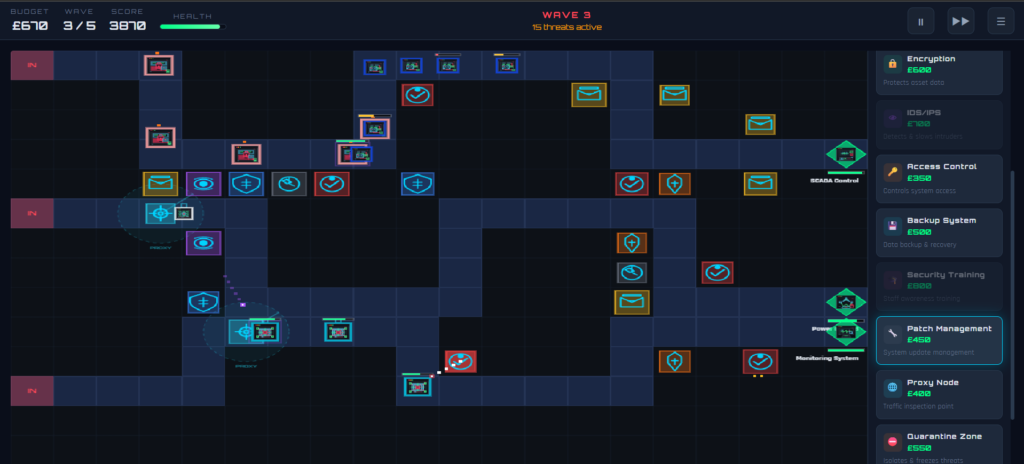
Cyber Defence TD is a tower-defence style game aimed at BTEC IT Unit 1 Learning Aim D, where students place and upgrade security controls on a live attack map against waves of phishing, malware, ransomware, DDoS and SQL injection attacks, managing a budget and building genuine defence in depth as missions escalate in complexity.
Breach//Point presents a series of cybersecurity scenarios with built-in revision, where the emphasis is on consequence: choices carry longer-term implications that only become clear as the simulation unfolds, which suits discussion-based lessons where you want students to justify a decision rather than just make one.

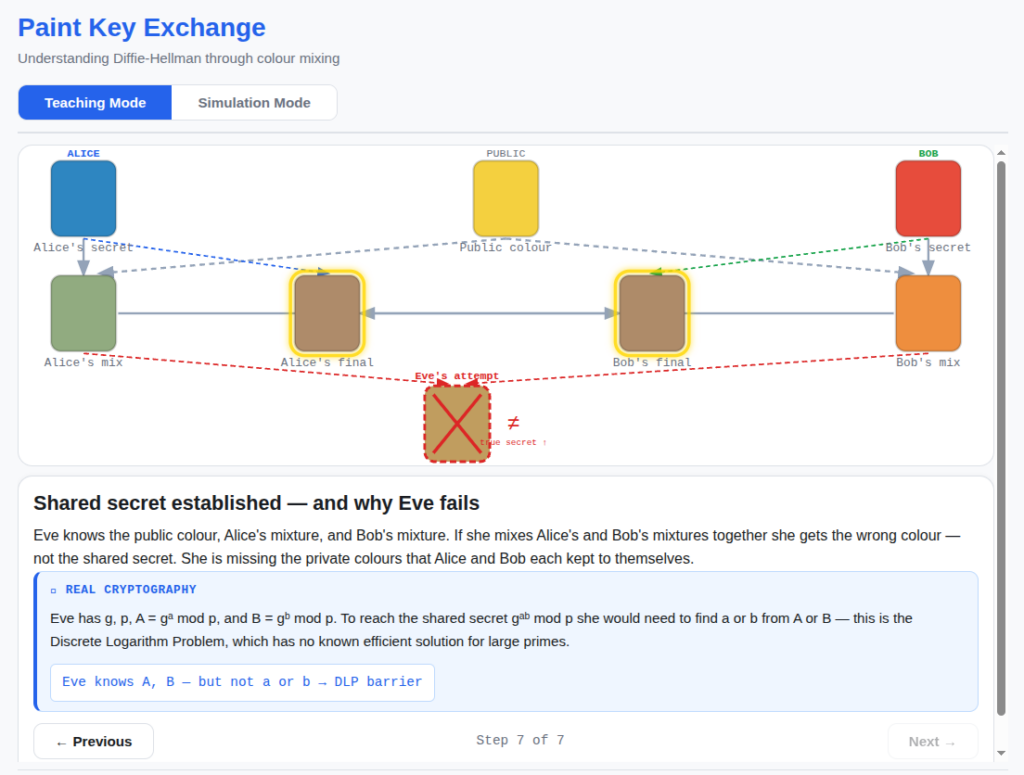
Paint Key Exchange explains Diffie-Hellman key exchange through a paint-mixing metaphor, letting students watch Alice and Bob agree on a shared secret colour without that colour ever crossing the network. A guided seven-step Teaching Mode reveals the protocol one phase at a time, while Simulation Mode lets students pick their own private colours and watch the mixing happen live. It’s a genuinely effective way to make one-way functions and the discrete logarithm problem concrete for students who otherwise glaze over at the algebra, and it closes the loop by connecting the maths to TLS, SSH and Signal.
Networks and hardware
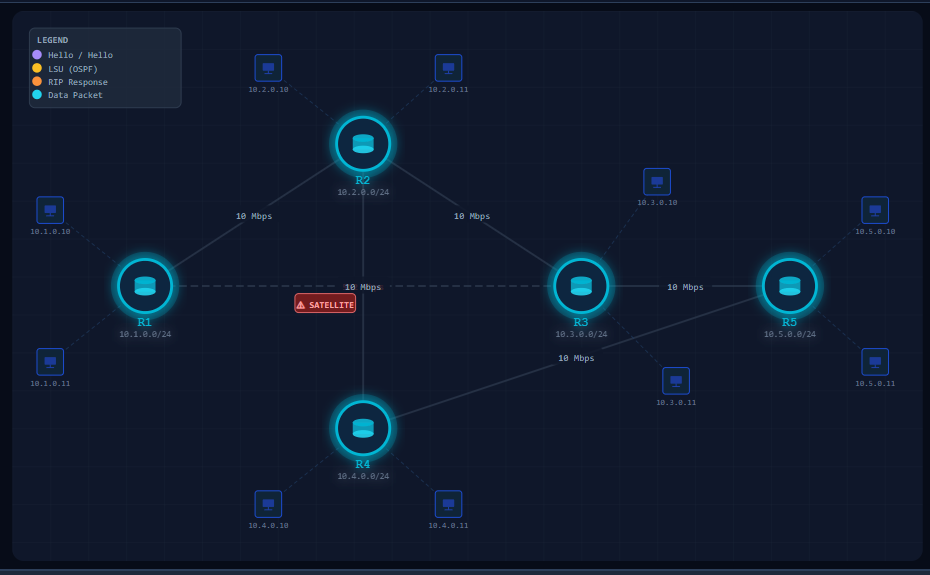
Network Routing Simulator animates how RIP and OSPF actually route packets across a realistic multi-router LAN/WAN topology. Students step through convergence and inspect routing tables as they update live, seeing distance vector versus link state routing in action: Bellman-Ford’s hop-count approach for RIP against Dijkstra’s shortest path calculation for OSPF, including the OSPF cost formula itself. It’s a genuinely difficult topic to teach from a textbook diagram alone, and watching convergence happen changes how quickly it lands.
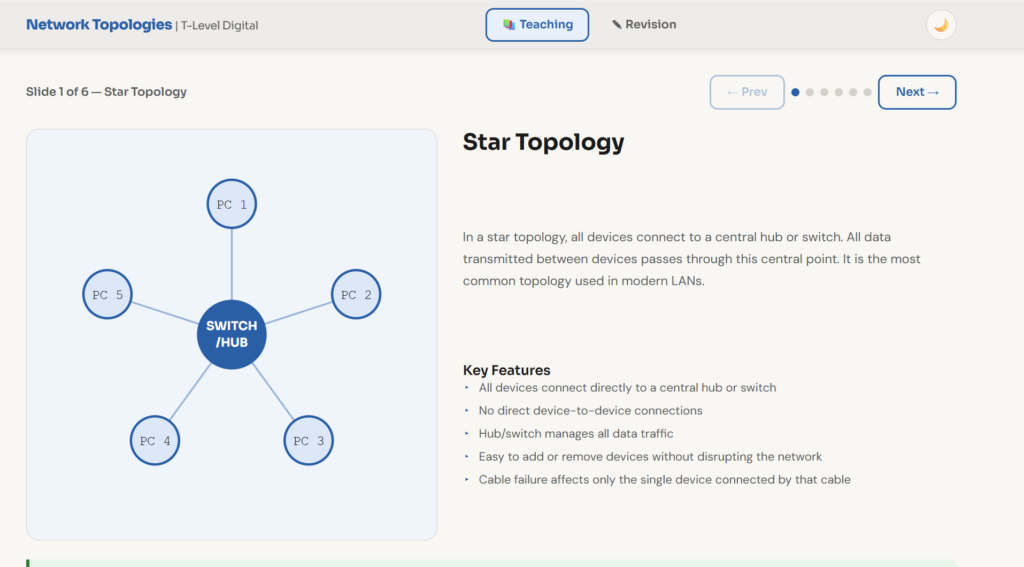
Network Topologies covers star, full mesh, partial mesh, tree and bus topologies, along with the logical-versus-physical distinction that trips up so many students, through six guided teaching slides with animated diagrams and a self-marking two-part assessment. It’s mapped directly to T-Level Digital LO 7.3.4, so it slots straight into a scheme of work without adaptation.
OSI and TCP/IP Network Models tackles the perennial memorisation problem of getting the layers in the right order, using mnemonics (All People Seem To Need Data Processing, and NITA for the OSI equivalent) alongside a bit of structured play. It works best taught properly first and then used to embed and check understanding afterwards.
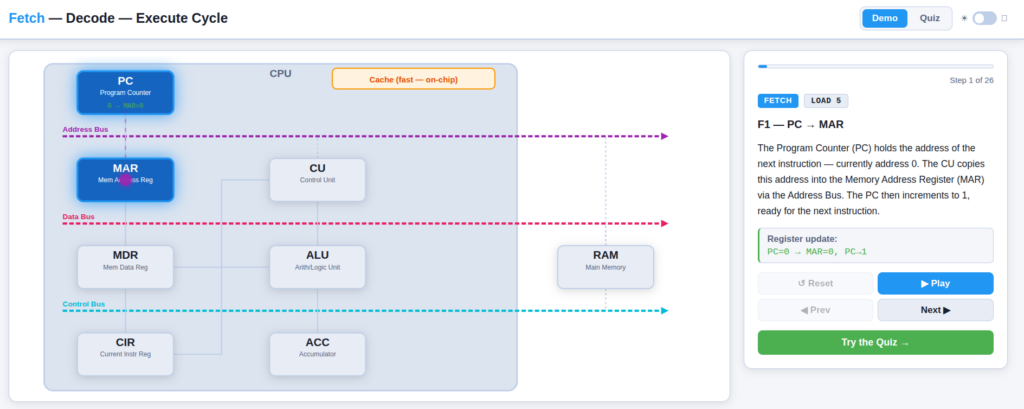
CPU Fetch-Decode-Execute Simulator visualises every micro-operation inside the CPU’s Fetch-Decode-Execute cycle, with a spark of light travelling between registers and memory along colour-coded address, data and control buses. Students see the roles of PC, MAR, MDR, CIR, CU, ALU and ACC in context rather than as an abstract list of acronyms, and a scored quiz mode checks understanding once the animation has done its job, correcting the misconceptions that tend to persist even after the diagram’s been drawn on the board.
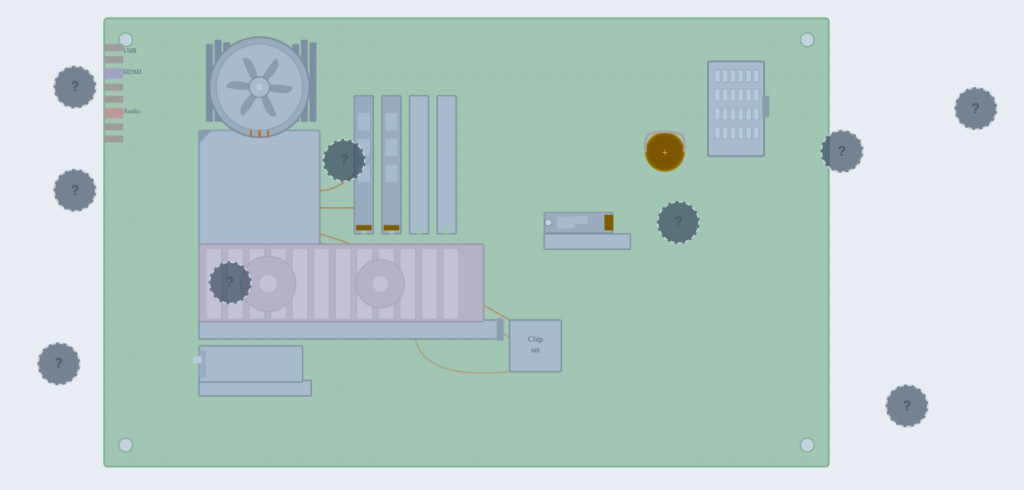
Hardware Labeller is built for T-Level Digital students and maps directly onto Learning Outcome 7.1.2. A twelve-slide teaching carousel covers every specified hardware component before students move into three interactive drag-and-drop SVG schematic diagrams, finishing with an instant scored summary and a per-scene breakdown of where marks were lost.
Databases and SQL
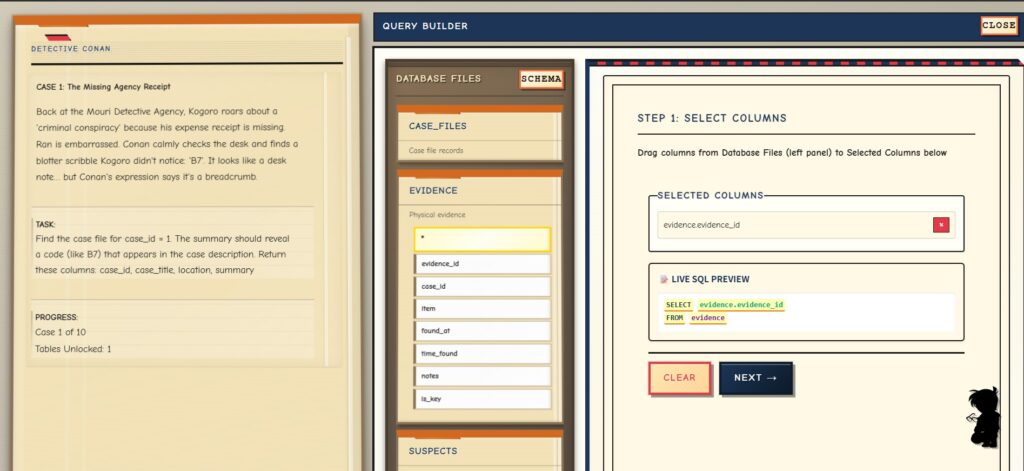
SQL Detective (ConanSQL) turns SQL practice into an actual investigation. Graffiti reading “SQL is Rubbish” has appeared on a wall in Exeter city centre, and students have to solve the crime by querying a SQLite database, progressing from SELECT statements and WHERE filtering through ORDER BY, JOIN and GROUP BY as the case develops. A visual query builder sits alongside a raw SQL editor, so students can work at whichever level suits them, and there’s a genuine narrative pull to finding out what the query reveals next rather than working through disconnected exercises because the worksheet says so.
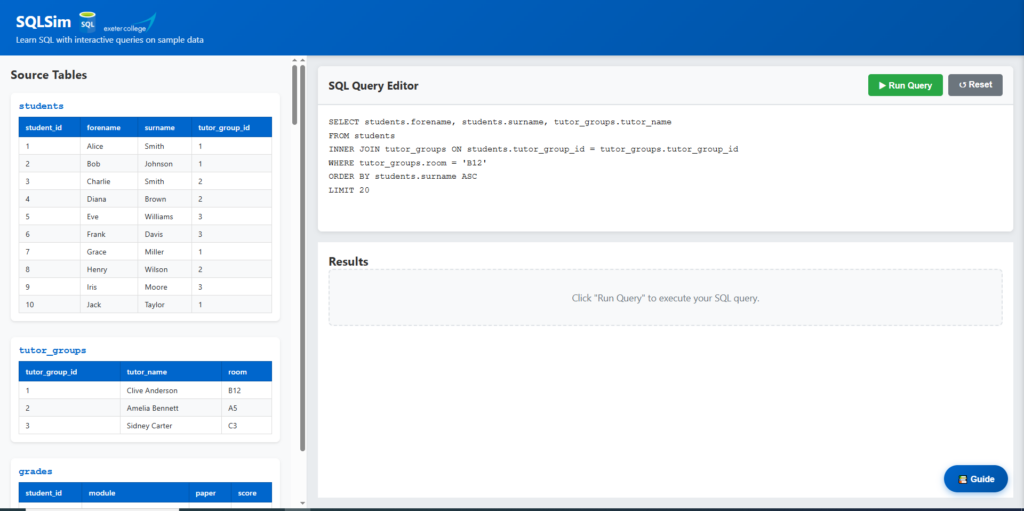
SQLSimulation is more of a tool to develop and extend SQL confidence: a browser-based SQL sandbox with sample tables and instant results, no server or account required, well suited to a quick in-class drill or a low-friction warm-up before assessed work. Give students three to five target queries and ask them to predict the output before they run it.
Agile, Scrum and project workflow
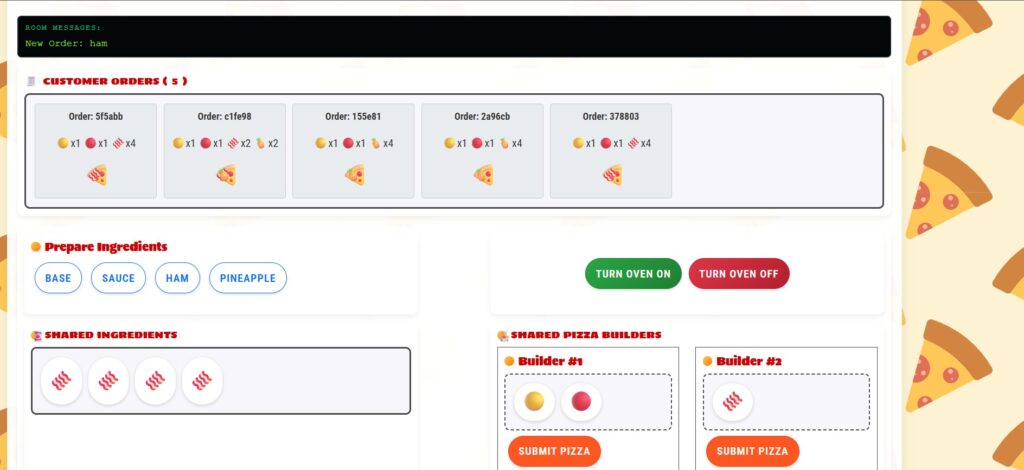
Kanban Pizza Game is a real-time multiplayer game where teams run a pizza kitchen across timed rounds, anyone joining a shared room by name. It teaches Kanban workflow, WIP limits and why doing less at once often delivers more, team coordination under time pressure, and spotting bottlenecks, all of which land far better after a chaotic first round than after any amount of explanation. Run a short chaos round first, then introduce prep, build and deliver roles, and pause after each round to ask where work piled up.
Kanban Simulation takes a more observational approach: an automated visual demonstration where students watch a virtual development team build a takeaway ordering app, moving feature cards through the workflow in real time. It’s a good way to introduce visual management and flow before students run a Kanban process themselves.
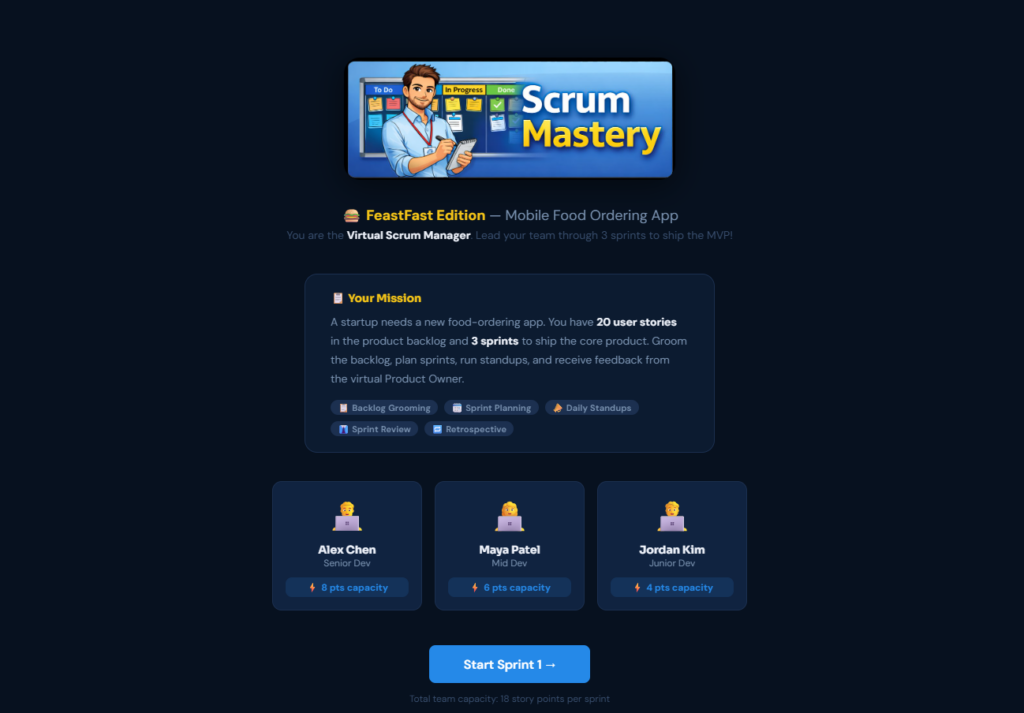
Scrum Mastery puts students in the Scrum Manager seat for a mobile food-ordering app, planning and running sprints across multiple iterations while managing capacity, handling blockers and reviewing progress. Having students justify their backlog order before planning, and comparing velocity across runs, turns it into a genuine discussion about estimation and scope control rather than just a game to finish.
Web design and CSS
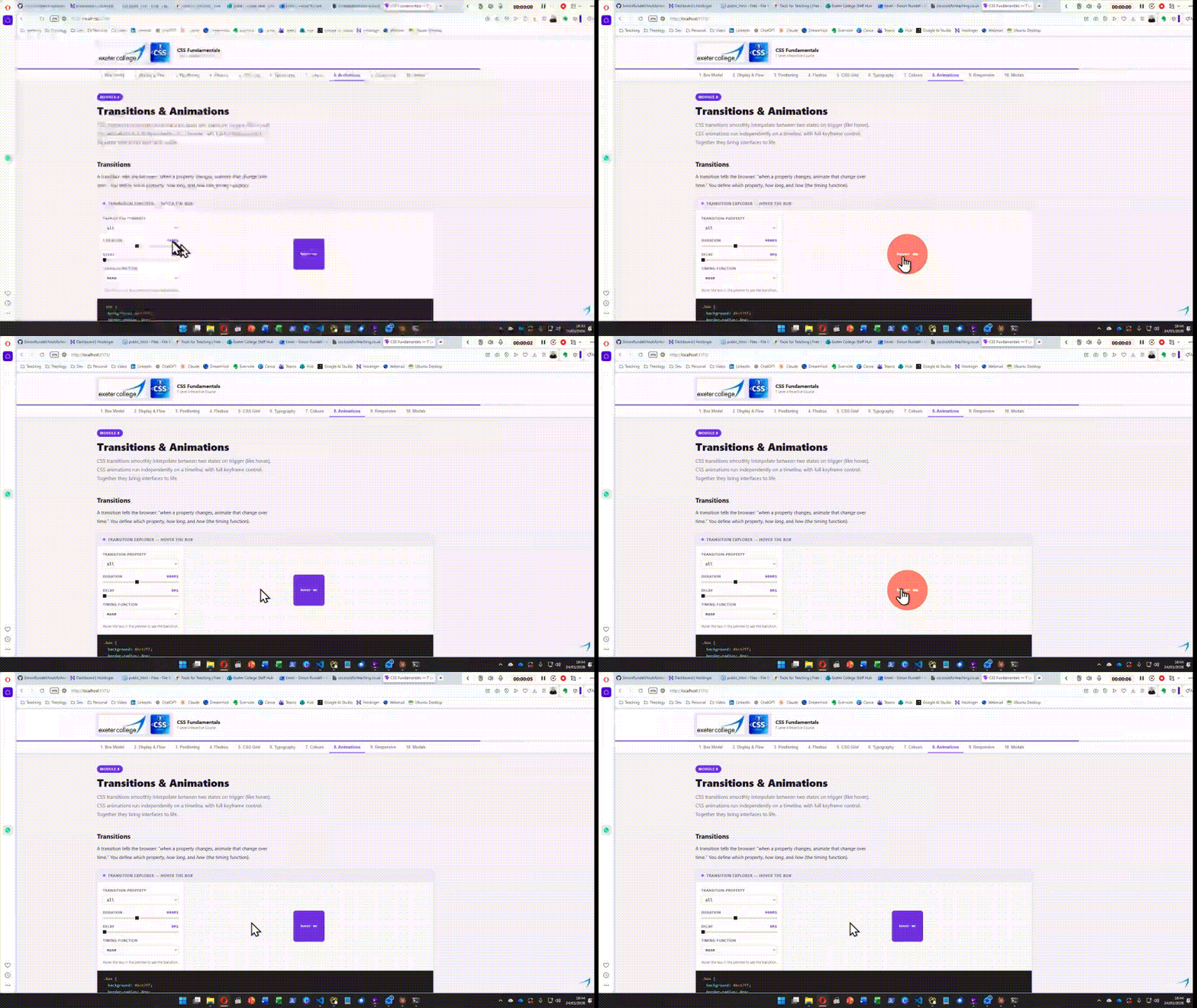
Introduction to CSS is an interactive, self-directed introduction to core CSS concepts with hands-on demos, but what sets it apart is the accompanying teaching material on GitHub: full per-module notes with learning objectives, timings, a scripted classroom walkthrough, discussion prompts, a table of ten common student misconceptions, and both formative and summative assessment ideas. It’s designed to work in three modes, teacher-led demo, self-directed activity, or homework reference, so the same resource covers a full range of lesson formats.
CSS Centring Techniques takes on one specific, endlessly frustrating topic: the seventy-two different ways to centre something on a web page. An experimentation sandbox lets students try their own code and see the result immediately, and full teaching notes are again available on GitHub.
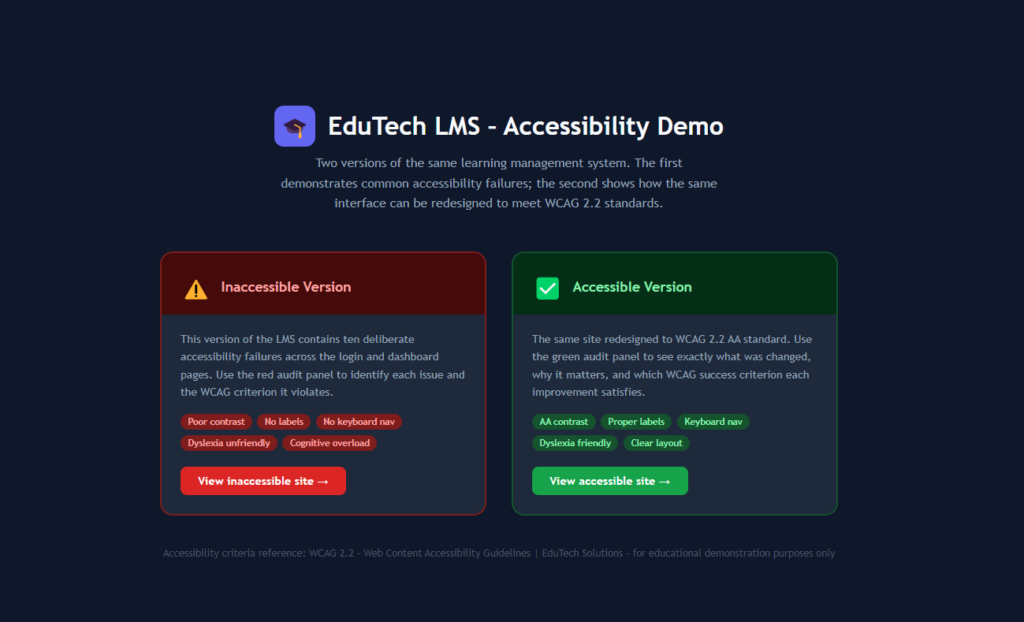
Good and Poor Accessibility Demo pairs two versions of the same site side by side: one that fails WCAG 2.2 standards and one that fully complies. Seeing bad practice in a real, browsable page rather than described in a checklist makes accessibility failures far easier to spot and explain.
Regex, made almost fun
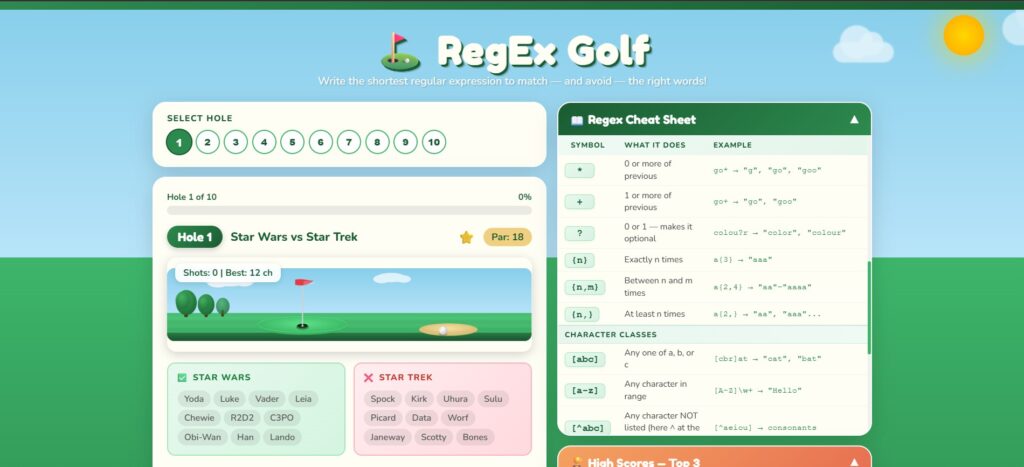
RegEx Golf is a KS4-friendly mini-game where students write the shortest possible regular expression that matches a green word list while avoiding a red one, across ten escalating holes with live match highlighting, a built-in cheat sheet, and a server-backed high score table. Start with characters, digits and hyphens before moving to anchors and classes, and use Par as a natural differentiation tool.
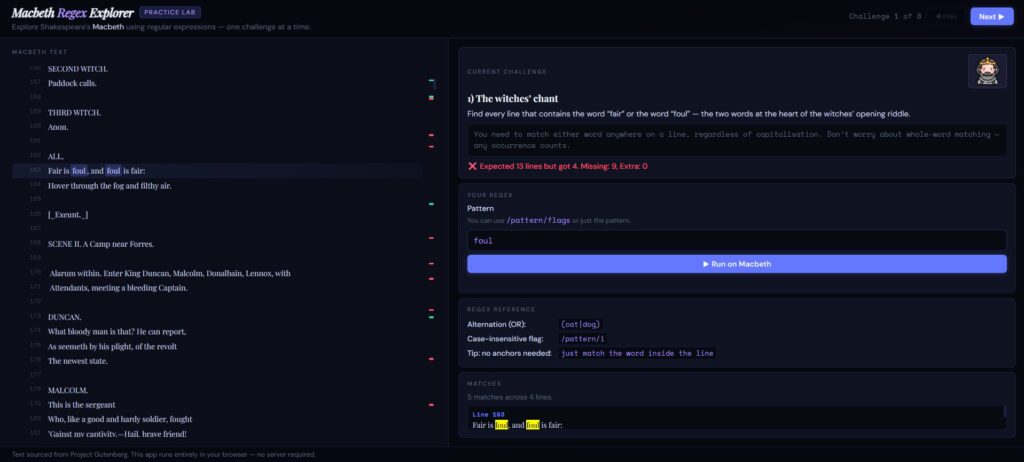
Macbeth Regex Explorer takes the same underlying skill and applies it to the full text of Shakespeare’s Macbeth, letting students test patterns against real literary text with live highlighting and escalating challenge prompts. It’s an unexpectedly good cross-curricular hook, and asking students to explain why a pattern matches before they refine it does more for understanding than any amount of syntax memorisation.
Formative assessment and quick checks
Retrieval Quiz is built around one of the best-evidenced techniques in educational research: that actively recalling information strengthens retention far more than re-reading notes. Students join a live session on any device using a short code, no accounts needed, and answer either drag-and-drop matching or four-option multiple choice questions with immediate feedback. A live leaderboard can run on the projector for a bit of competitive energy, or stay hidden if you’d rather keep the pressure low, and at the end every student gets a full review of what they got wrong. Quizzes can be built in bulk from a CSV, which makes setting up a full unit’s worth of retrieval practice a single sitting rather than a term-long chore.
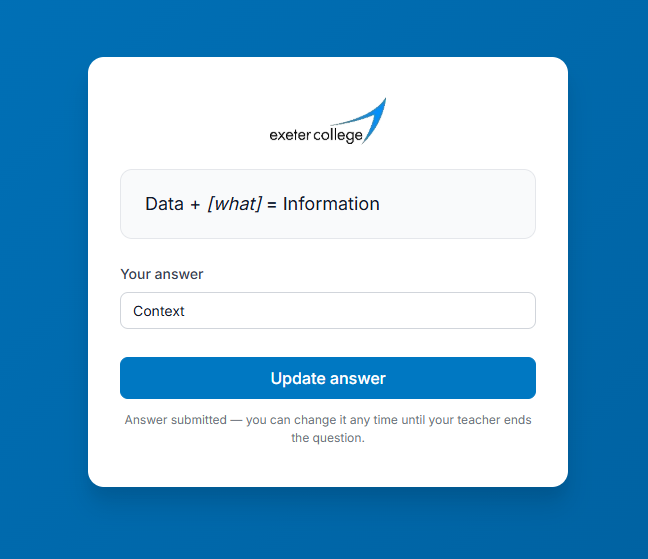
MiniWhiteBoard solves a genuinely practical problem: not every room has physical mini whiteboards, and even where they do, reading thirty of them from the front is hard. Type a question once, get a permanent reusable code, and launch it whenever you want an instant, anonymous class poll. Students answer on their own device with no login and no names attached, so even the quietest students tend to join in, and answers appear live on screen as a wall of anonymous cards that update as students change their minds. It’s built for cold starts, plenaries and the “has this actually landed” check mid-lesson, with genuinely no planning overhead.
Quiz Master is a lightweight quiz and survey builder mixing free text, rating scales and multiple choice within the same set, useful equally for checking understanding and for gathering feedback you can actually act on. Students join with a short code and their college email, no account required, and every response is timestamped and exportable to CSV.
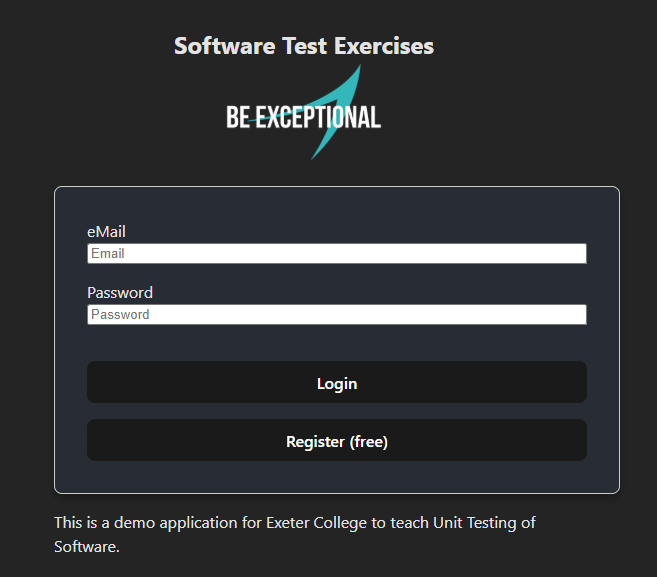
Unit Testing Practice gives students a real React login-screen system to test against a supplied testing grid, including some tests that are designed to fail. Asking students to identify which failures are critical, and to spot UX issues alongside functional ones, does far more for their understanding of testing than marking a checklist ever will.
And a couple that don’t fit anywhere else
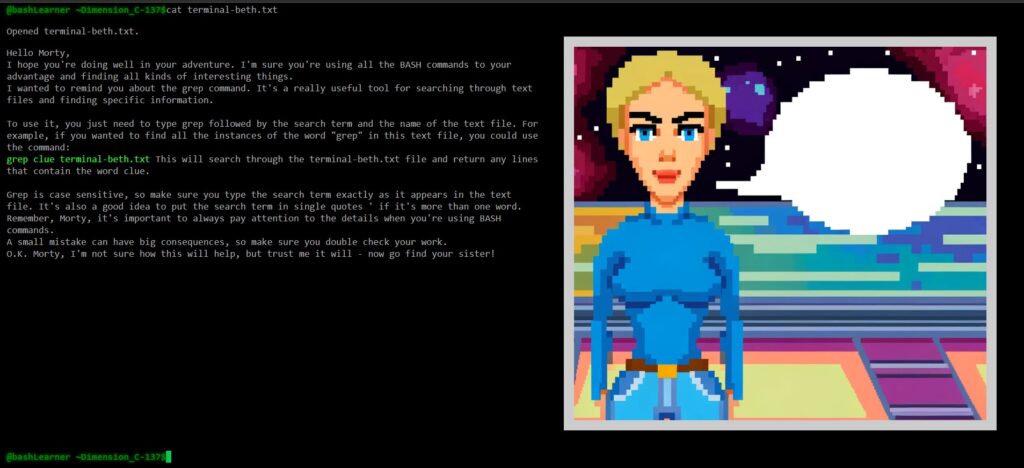
Bash Game is an interactive terminal-style text adventure where students progress by typing real Linux commands, covering pwd, ls, cd, cat, grep, mkdir, touch, mv and rm, correctly to explore, find clues and solve puzzles. It works well as a warm-up before Git, servers or cybersecurity labs, particularly if you put a command bank on the board for the first ten minutes and then ask students to explain in plain English what each command actually did.
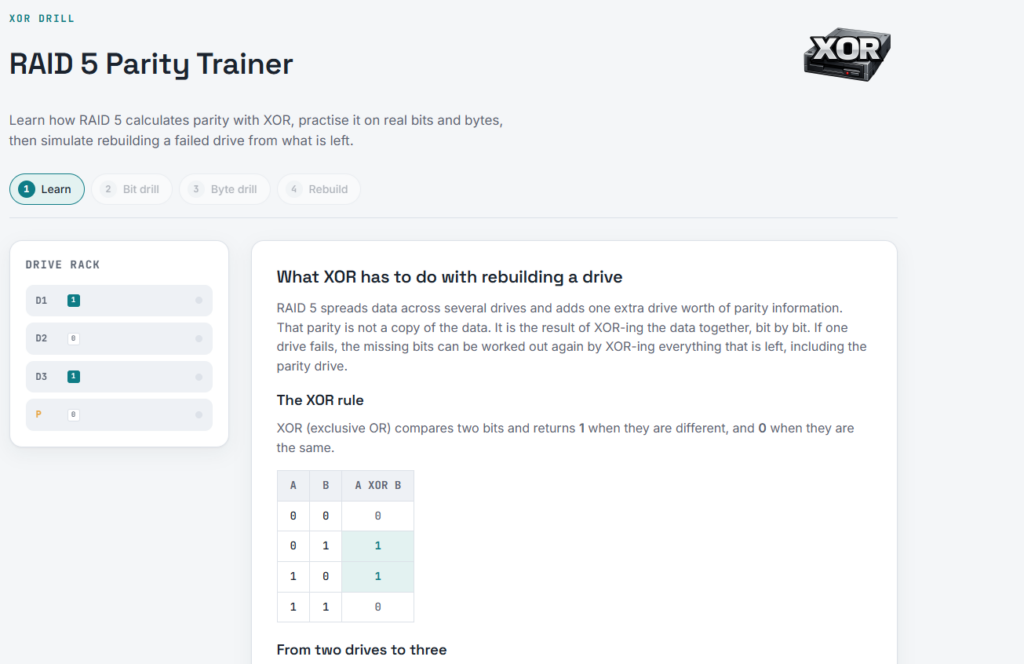
Raid5 Parity XOR Calculations is one of the more carefully sequenced tools on the site. RAID 5 appears across BTEC, T-Level and NCFE Level 2 specifications, but students routinely learn to recite “it uses parity and survives one drive failure” without any real grasp of how. This tool builds understanding in four deliberate stages: a short explanation of the XOR operation with a worked truth table, a bit drill working through eight rounds of parity calculation, a byte drill scaling that up to full 8-bit values, and finally a simulated drive failure where students reconstruct the missing drive column by column using only the survivors. That last stage is where it tends to click, because by then students are reconstructing real values they’ve already handled rather than an abstract example. Feedback is immediate throughout, a streak counter and progress tracker keep momentum going, and a persistent XOR reference card is always available for anyone who needs reminding.
Why it’s worth the bookmark
What holds this collection together isn’t a shared visual style or a single subject area. It’s a consistent instinct: find the one part of a topic that students consistently misunderstand or find dull, and build something that makes that specific part concrete, interactive, or worth paying attention to. Some of these are full courses you could build a scheme of work around, AI Revision Bot and Cybersecurity Essentials both fall into that category. Others are five-minute tools you’ll reach for once a fortnight to check understanding or break up a lesson, and that’s exactly the right size for what they do.
None of it costs anything, none of it requires an account for your students, and all of it is yours to adapt under Creative Commons terms if something needs tweaking for your own context. Worth setting aside a proper hour, rather than five minutes, to work out which handful of these earns a permanent place in your scheme of work.